How to use Study Buddy
From install to your first homework report in about ten minutes. Screenshots are from the real app with test profiles.
-
Install the app
Study Buddy is not on Google Play yet, so you install it directly from our website. It takes a minute.
- On your Android phone, open studybuddy.eurekamoment.co/download and tap Download the app.
- Open the downloaded file. If Android asks, allow your browser to install unknown apps.
- Tap Install, then Open.
Tip: the full steps, with what each Android screen says, are on the download page.
-
Sign in with your email
Open the app and choose Parents. Sign in with your email address — we email you a short code. Use the same email later on this website to manage your plan.
Before you add a child, the app shows “You’re in control”: what’s used (voice, photos of schoolwork, trusted AI providers). Tick I agree to all as the parent or guardian and continue.
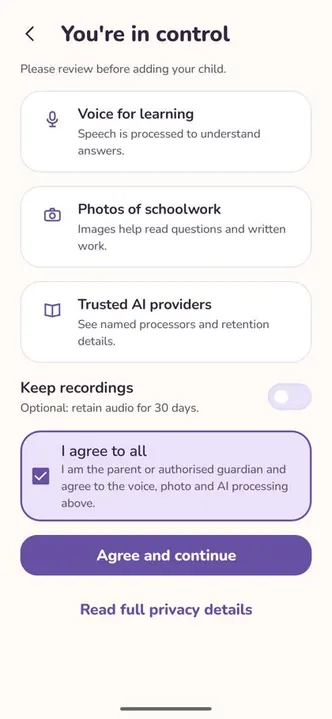
Parent consent -
Add your child in two taps
Type your child’s first name or nickname and class, then pick a learning buddy: Bloom or Buddy. You can rename the buddy later in Buddy’s settings.
Your child can also pick favourites — characters, sports, hobbies — or you can skip that for now.
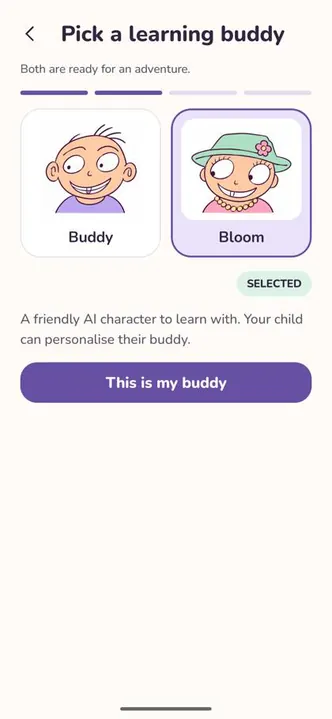
Pick Bloom or Buddy -
Add homework with a photo
Tap Add homework → Scan the page. Fit the whole page in the photo. You can also take a normal photo or choose a PDF or picture.
A progress bar shows the buddy reading the page. Keep the screen open until it finishes — then check each question with Yes, that’s right or Change.
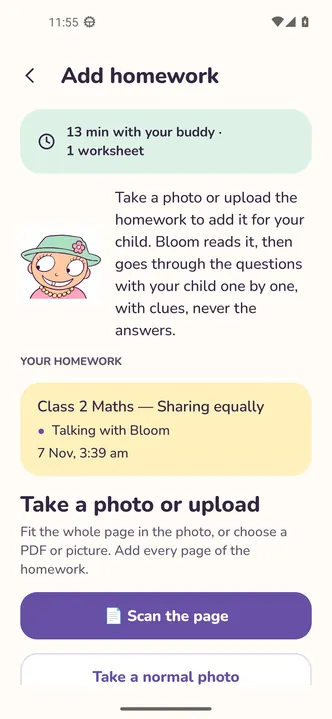
Scan the page 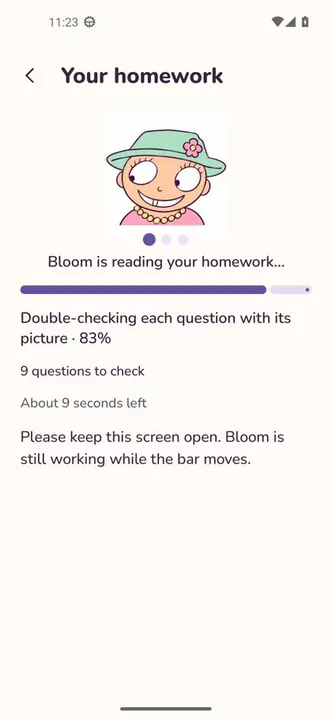
Reading the worksheet -
The buddy session
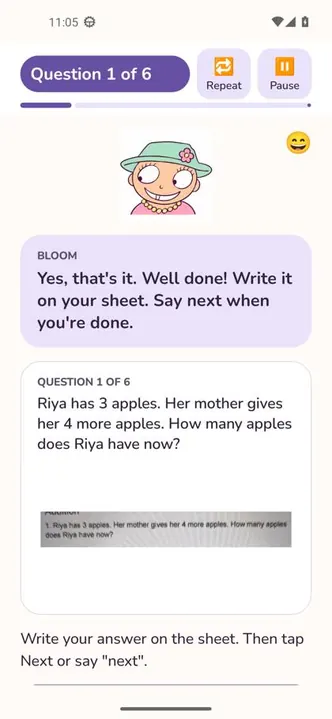
Your child taps Talk to Bloom (or Buddy). The buddy reads one question at a time and listens to the answer. Your child can also type.
- Repeat — hear the question again.
- Pause — take a break and continue later.
- When an answer is right, the buddy says “write it on your sheet”. Your child writes it, then says “next” or taps Next.
- Multiple-choice questions show the options on screen.
Write it on your sheet 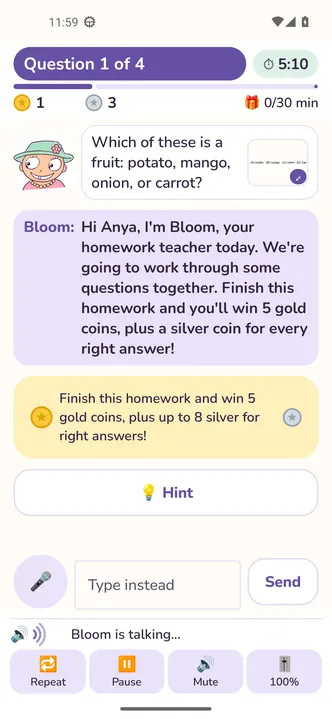
Multiple choice -
Hearts and rewards
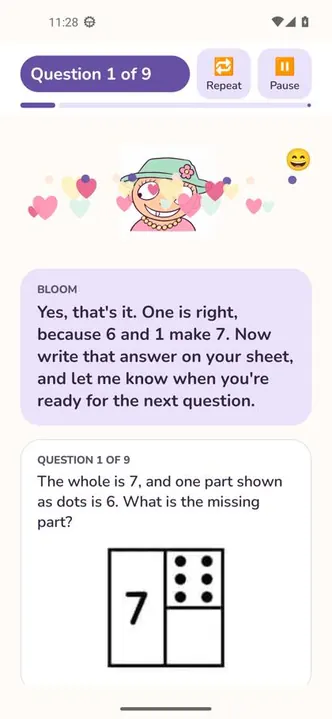
Right answers earn hearts and coins; tricky ones get a gentle hint and encouragement. Streaks, a weekly jackpot and awards make coming back fun.
Hearts for a right answer 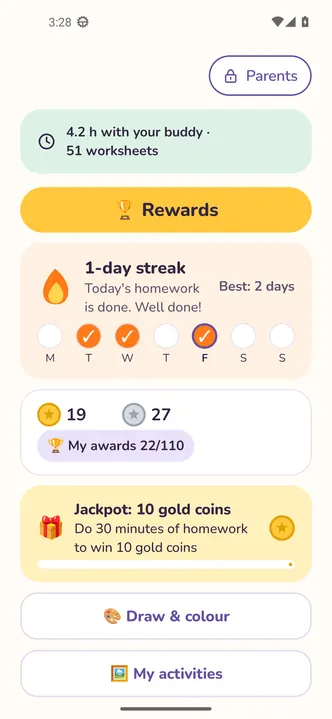
Streaks and awards -
The parent area and your PIN
Tap Parents on the start screen. The parent area is protected by a 4-digit PIN that you choose, so your child can’t change settings.
From here you add homework, see how much time your child spent with the buddy, set reminders and quiet times, and manage each child’s profile.
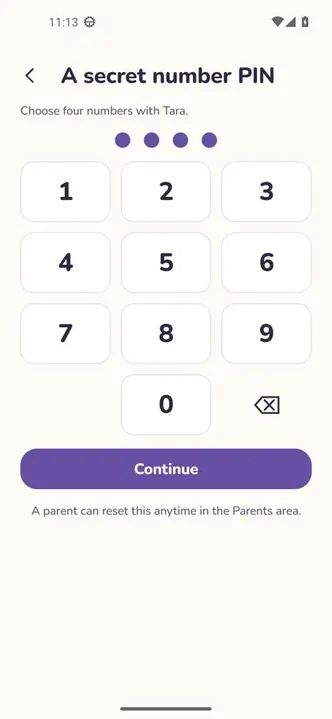
Set your parent PIN 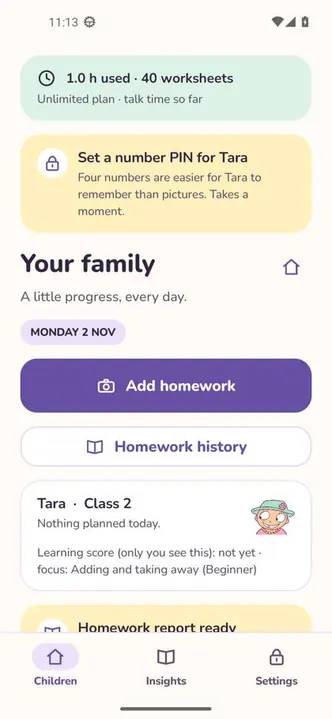
Your family -
Reports and history
Every homework sits in one of three tabs: Not started, In progress and Completed. Open one to see the score, the worksheet and answer sheet, the buddy’s highlights and what needs more practice.
Insights show time spent each day and correct answers over the week.
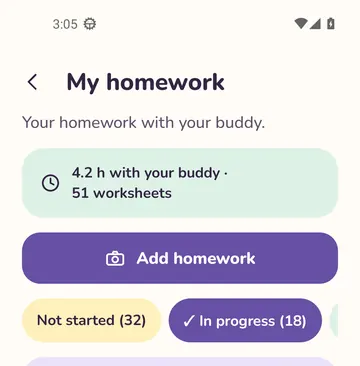
Homework tabs 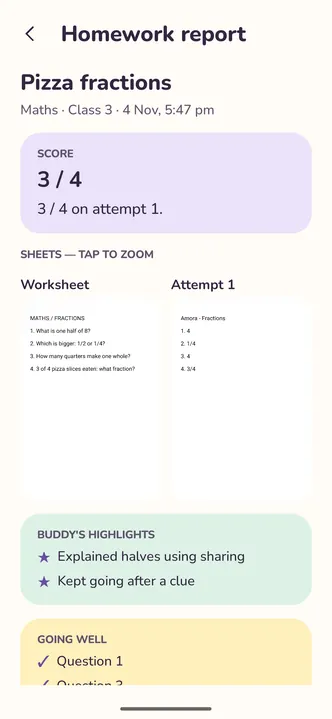
Homework report 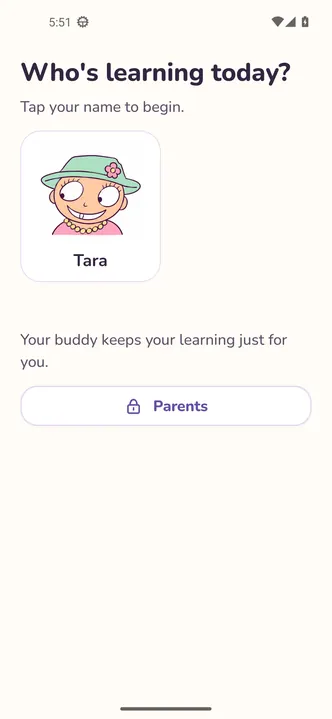
Insights -
Manage your plan on the website
Every new family starts with a free trial (10 worksheets or 60 minutes of talk time, whichever comes first). To continue, sign in to My account on this website with the same email as the app and choose a plan.
Pay with UPI, card or netbanking. Then open the app (pull to refresh or reopen it) and your plan is there.
Same email, everywhere
The plan is linked to your family account by email — no codes to copy between devices.
Still have a question?
Our FAQ covers installing, privacy, billing and more — or write to us at contact@eurekamoment.co.